

安装与设置
Hummingbot 网关是一个 API/CLI 客户端,提供标准化的 REST 接口,用于与区块链网络和去中心化交易所(DEX)进行交互。它通过统一的接口实现了与这些协议的语言无关交互。
新增:通过 Hummingbot API 管理 Gateway
如果你使用推荐的 Hummingbot API 方法安装了 Hummingbot,你可以直接通过 API 管理 Gateway——无需单独安装!
Hummingbot API 包含 manage_gateway_container 工具,用于管理 Gateway 的整个生命周期:
- 启动 Gateway:通过 MCP 使用“以开发模式启动 Gateway,并使用口令 'admin'”
- 检查状态:“检查 Gateway 状态”
- 重启/停止:无需手动输入 Docker 命令即可管理 Gateway
详见Hummingbot API 文档,了解通过 API 管理 Gateway 的更多细节。
以下方法适用于独立安装 Gateway(不使用 Hummingbot API)。
独立安装 Gateway 有两种主要方式:
- Docker 安装(推荐大多数用户使用)
- 源码安装(适用于开发者和高级用户)
使用 Docker 安装
此方法假设您希望将网关与 Hummingbot 配合使用,以启用 DEX 交易。Docker 流程可实现两个服务之间的无缝通信。
1 - 导航到您的 Hummingbot 目录
2 - 编辑 docker-compose.yml 文件,并取消注释与网关相关的行:
  gateway:
   restart: always
   container_name: gateway
   image: hummingbot/gateway:latest
   ports:
     - "15888:15888"
   volumes:
     - "./gateway-files/conf:/home/gateway/conf"
     - "./gateway-files/logs:/home/gateway/logs"
     - "./certs:/home/gateway/certs"
   environment:
     - GATEWAY_PASSPHRASE=admin
     - DEV=true
3 - 启动两个服务
docker compose up -d

[+] Running 3/3
 ✔ Network hummingbot_default  Created                                                                                                                                              0.0s
 ✔ Container hummingbot        Started                                                                                                                                              0.2s
 ✔ Container gateway           Started
4 - 连接到 Hummingbot
设置密码后,您应该在右上角看到 网关:🟢 在线。
注意
默认情况下,网关以开发模式运行(DEV=true),使用 HTTP 以便于设置。对于需要 HTTPS 的生产环境,请设置 DEV=false 并确保正确配置证书。
从源码安装
您可以独立安装网关,然后手动将其链接到 Hummingbot。这些说明假设您已在安装网关的机器上安装了 Hummingbot,无论是通过源码还是 Docker 安装。有关如何安装 Hummingbot,请参见 安装。
安装先决条件
安装以下依赖项:
提示
新版网关使用 pnpm 替代 npm,因为它能更高效地处理依赖关系,并节省磁盘空间。由于网关引入了多个具有冗余依赖的库,pnpm 为所有包创建一个单一的内容寻址存储,显著减少了安装体积并提升了性能。
从命令行界面(CLI):
首先,使用 sudo 管理员前缀安装 NodeJS 20 或更高版本:
# For Ubuntu 20+
sudo apt update && sudo apt install -y curl
curl -fsSL https://deb.nodesource.com/setup_20.x | sudo -E bash -
sudo apt install -y nodejs
然后安装 pnpm:
安装并设置网关
-
克隆网关代码仓库并进入该文件夹:
-
安装并构建
package.json中定义的 JavaScript 依赖项:
运行设置脚本
位于网关根目录的 gateway-setup.sh 脚本会将默认的网关配置文件从 /src/templates 复制到 /conf/ 文件夹。
运行脚本:
脚本将提示您选择要更新的配置选项:
server.yml- 网关服务器配置chains/- 链和网络配置connectors/- 去中心化交易所(DEX)连接器配置tokens/- 每条链/网络的代币列表pools/- 每个 DEX 连接器的池列表
对于全新安装,请选择所有选项。脚本将保留任何现有的钱包配置和 defaultWallet 设置。
可选:生成证书
注意
生成证书是可选操作。默认情况下,网关以开发模式(HTTP)运行,无需证书。只有在希望以生产模式(HTTPS)运行网关时才需要证书。
如果希望启用 HTTPS 模式以实现安全通信:
- 启动您的 Hummingbot 客户端 并运行
gateway generate-certs - 提示时输入一个安全的密码短语
- 记下证书存储位置的 certs_path
- 当运行
pnpm run setup时,选择链接证书并提供路径
要将 Hummingbot 连接到以 HTTPS 模式运行的网关,请在 Hummingbot 的 conf_client.yml 中设置 gateway_use_ssl: true。
运行网关
开发模式与生产模式
网关可以以下列两种模式之一运行:
开发模式(HTTP) - 默认模式
- 通过
--dev标志或默认方式启动 - 暴露 HTTP(未加密)REST 接口
- 交互式 Swagger 文档地址:http://localhost:15888/docs
- 在日志中显示🔴指示器
- 当
conf_client.yml中设置gateway_use_ssl: false时,与 Hummingbot 兼容
生产模式 (HTTPS) - 可选
- 启动时未使用
--dev参数 - 暴露 HTTPS(加密)REST 接口
- 需要 SSL 证书
- 在日志中显示 🟢 指示器
- 当
conf_client.yml中设置gateway_use_ssl: true时,与 Hummingbot 兼容
注意
连接到 Hummingbot 不再强制要求使用 HTTPS。默认情况下,Gateway 和 Hummingbot 均配置为使用 HTTP,以便更轻松地完成设置。您可以在 Hummingbot 的 conf_client.yml 文件中修改 gateway_use_ssl 设置,以在 HTTP 和 HTTPS 模式之间切换。
开发模式(默认)
对于当前作为默认模式且与 Hummingbot 配合使用的开发模式(HTTP):
或者直接运行:
处理钱包操作的接口需要提供密码短语。
如果服务器已成功启动,您应该会看到以下内容:
bigint: Failed to load bindings, pure JS will be used (try npm run rebuild?)

╔██████╗  █████╗ ████████╗███████╗██╗    ██╗ █████╗ ██╗   ██╗
██╔════╝ ██╔══██╗╚══██╔══╝██╔════╝██║    ██║██╔══██╗╚██╗ ██╔╝
██║  ███╗███████║   ██║   █████╗  ██║ █╗ ██║███████║ ╚████╔╝
██║   ██║██╔══██║   ██║   ██╔══╝  ██║███╗██║██╔══██║  ╚██╔╝
╚██████╔╝██║  ██║   ██║   ███████╗╚███╔███╔╝██║  ██║   ██║
 ╚═════╝ ╚═╝  ╚═╝   ╚═╝   ╚══════╝ ╚══╝╚══╝ ╚═╝  ╚═╝   ╚═╝
2025-04-04 10:09:59 | info |    ⚡️ Gateway version 2.8.0 starting at http://localhost:15888
2025-04-04 10:09:59 | info |    Checking for processes using port 15888...
2025-04-04 10:09:59 | info |    No process found using port 15888
2025-04-04 10:09:59 | info |    🔴 Running in development mode with (unsafe!) HTTP endpoints
2025-04-04 10:09:59 | info |    Read token file from conf/lists/solana.json, content length: 619791
2025-04-04 10:09:59 | info |    Parsed token count: 3859
2025-04-04 10:09:59 | info |    Loaded 3859 tokens for mainnet-beta
2025-04-04 10:09:59 | info |    📓 Documentation available at http://localhost:15888/docs
生产模式(可选)
对于需要 SSL 证书的生产模式(HTTPS):
- 确保已正确配置 SSL 证书(参见上方“可选:生成证书”部分)
- 在 Hummingbot 的
conf_client.yml中设置gateway_use_ssl: true - 运行 Gateway 时不带
--dev参数:
如果服务器已成功启动,您应该会看到以下内容:
bigint: Failed to load bindings, pure JS will be used (try npm run rebuild?)

╔██████╗  █████╗ ████████╗███████╗██╗    ██╗ █████╗ ██╗   ██╗
██╔════╝ ██╔══██╗╚══██╔══╝██╔════╝██║    ██║██╔══██╗╚██╗ ██╔╝
██║  ███╗███████║   ██║   █████╗  ██║ █╗ ██║███████║ ╚████╔╝
██║   ██║██╔══██║   ██║   ██╔══╝  ██║███╗██║██╔══██║  ╚██╔╝
╚██████╔╝██║  ██║   ██║   ███████╗╚███╔███╔╝██║  ██║   ██║
 ╚═════╝ ╚═╝  ╚═╝   ╚═╝   ╚══════╝ ╚══╝╚══╝ ╚═╝  ╚═╝   ╚═╝
2025-04-04 10:12:32 | info |    ⚡️ Gateway version 2.8.0 starting at https://localhost:15888
2025-04-04 10:12:32 | info |    Checking for processes using port 15888...
2025-04-04 10:12:32 | info |    No process found using port 15888
2025-04-04 10:12:32 | info |    🟢 Running in secured mode with behind HTTPS endpoints
2025-04-04 10:12:33 | info |    Read token file from conf/lists/solana.json, content length: 619791
2025-04-04 10:12:33 | info |    Parsed token count: 3859
2025-04-04 10:12:33 | info |    Loaded 3859 tokens for mainnet-beta
2025-04-04 10:12:33 | info |    📓 Documentation available at https://localhost:15888/docs
连接到 Hummingbot
一旦 Gateway 启动运行,请返回您的 Hummingbot 客户端,或如果已退出则重新启动。在右上角,如果 Hummingbot 客户端已成功连接到 Gateway,您应看到 GATEWAY: 🟢 ONLINE。

如果显示 GATEWAY: OFFLINE,请检查以下事项:
- Gateway 是否正在 15888 端口上运行
- Hummingbot 的
conf_client.yml中的gateway_use_ssl设置是否与您的 Gateway 模式匹配(HTTP 为 false,HTTPS 为 true) - 如果使用 HTTPS,请确保 Gateway 和 Hummingbot 中均已正确配置证书
交互式 Swagger 文档
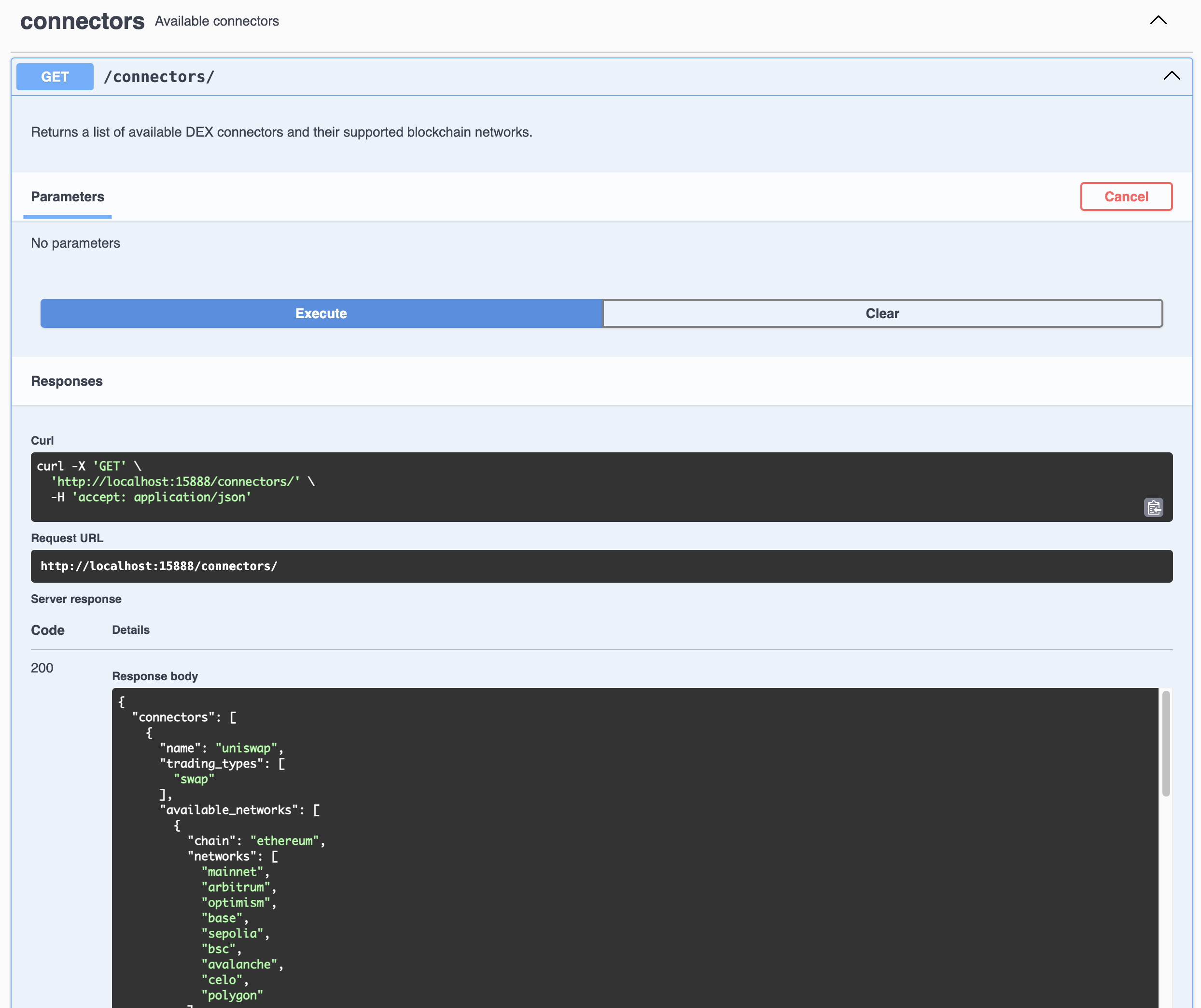
Gateway 在开发模式下运行时,通过 Swagger UI 提供交互式 API 文档。该界面允许您:
- 浏览所有可用的 API 接口
- 直接在浏览器中测试 API 调用
- 查看请求/响应的数据结构
- 执行实时 API 调用
要访问 Swagger 文档:
- 使用
pnpm start --passphrase=<PASSPHRASE> --dev以开发模式启动网关 - 打开浏览器并访问 http://localhost:15888/docs
- 您将看到 Swagger UI 界面,其中所有可用的端点按类别分组
文档中的每个端点都显示详细信息(方法、路径、描述、参数、请求/响应示例),并允许您通过填写参数直接测试 API 调用,查看服务器的响应。
该文档由网关路由文件自动生成,确保始终与最新的 API 变更保持同步。